LogTag ResQ
Upload tool for Cellular Loggers
Occasionally, the LT5GEO you have just received does not have sufficient power left to send its recorded data to LogTag Online via the cellular network.
You can either charge the unit and wait until the data upload to LogTag Online can be completed, or you can use a tool called LogTag ResQ to transfer the missing data to LogTag Online, using your PC.
What you need
- The logger from which you wish to extract the data
- A PC running Windows 8.1 or later, with the dotnet version 4.5 framework installed (most PC's running Windows 8.1 or later have this already installed). Unfortunately, you will not be able to do this using a mobile device, unless it can run Windows software
- An Internet connection that allows you to connect to LogTag Online
- A USB cable with a USB-C plug (to connect to the logger) and a USB-C or USB-A plug (depending on the available port on your PC).
Downloading the program
Click this link to download the program to your PC.
Once completed, you will typically find the program in your Downloads folder.
You can copy the program to another folder, or leave it in the downloads folder. It is a self-contained executable file, which does not require installation.
Running the program
Double click the program. You will see the main program window.
The software now checks:
- That an Internet connection is available
- That it can reach LogTag Online for uploading data
When the check successfully completes, indicated by the green WiFi and LTO connection icons, you will be prompted to connect the LT5GEO logger from which you want to extract the data.
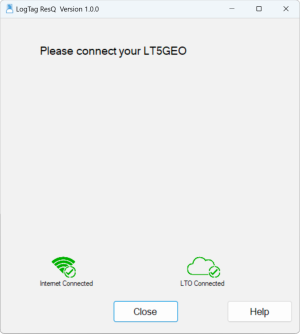
Once connected, you will see a message that the data transfer has begun.
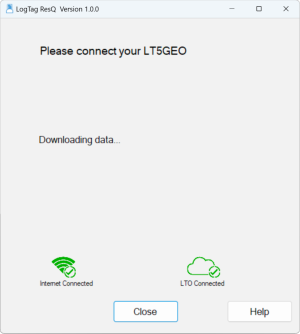
At this stage, do not disconnect the logger from the PC.
Once all data is extracted from the logger, it is transferred to LogTag Online.
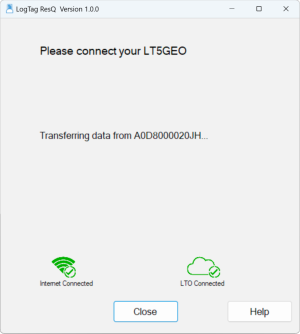
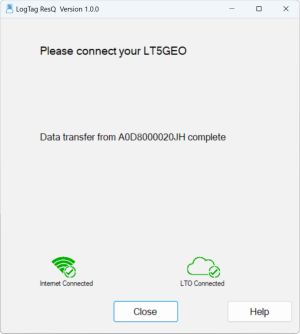
Once complete, the data will be available for viewing in LogTag Online after a short processing period.
Troubleshooting
If any errors occur during this process, you will receive an error message.
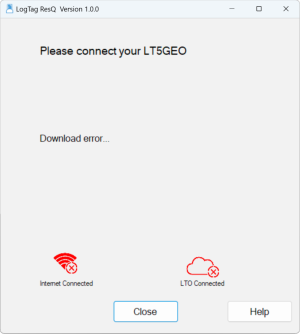
Check that
-
You are using a quality USB-C lead
-
Your PC is connected to the Internet
-
Any firewalls allow connection to LogTag Online on port 18885.
You will be prompted to enter your email address into a diagnostics form. A special file will be sent to [email protected], and you will be contacted on this email with further information.
Do not delete this paragraph, it is necessary so the Webfonts are included in the online output! This paragraph is not displayed in the output.
Roboto-Bold.eot
Roboto-Bold.woff2
Roboto-Bold.woff
Roboto-Bold.ttf
Roboto-Bold.svg
Roboto-Medium.eot
Roboto-Medium.woff2
Roboto-Medium.woff
Roboto-Medium.ttf
Roboto-Medium.svg
Roboto.eot
Roboto.woff2
Roboto.woff
Roboto.ttf
Roboto.svg
RobotoCondensed-Regular.eot
RobotoCondensed-Regular.woff2
RobotoCondensed-Regular.woff
RobotoCondensed-Regular.ttf
RobotoCondensed-Regular.svg
Roboto-Light.eot
Roboto-Light.woff2
Roboto-Light.woff
Roboto-Light.ttf
Roboto-Light.svg
STIX2Math.otf
STIX2Math.woff
STIX2Math.woff2
ErasITC-Bold.eot
ErasITC-Bold.woff2
ErasITC-Bold.woff
ErasITC-Bold.ttf
ErasITC-Bold.svg
Biryani-Bold.eot
Biryani-Bold.woff2
Biryani-Bold.woff
Biryani-Bold.ttf
Biryani-Bold.svg
Biryani-Regular.eot
Biryani-Regular.woff2
Biryani-Regular.woff
Biryani-Regular.ttf
Biryani-Regular.svg
Biryani-Light.eot
Biryani-Light.woff2
Biryani-Light.woff
Biryani-Light.ttf
Biryani-Light.svg
Biryani-SemiBold.eot
Biryani-SemiBold.woff2
Biryani-SemiBold.woff
Biryani-SemiBold.ttf
Biryani-SemiBold.svg


